
Scoring64 / AI grading
Grade handwritten answers
with AI in Scoring64
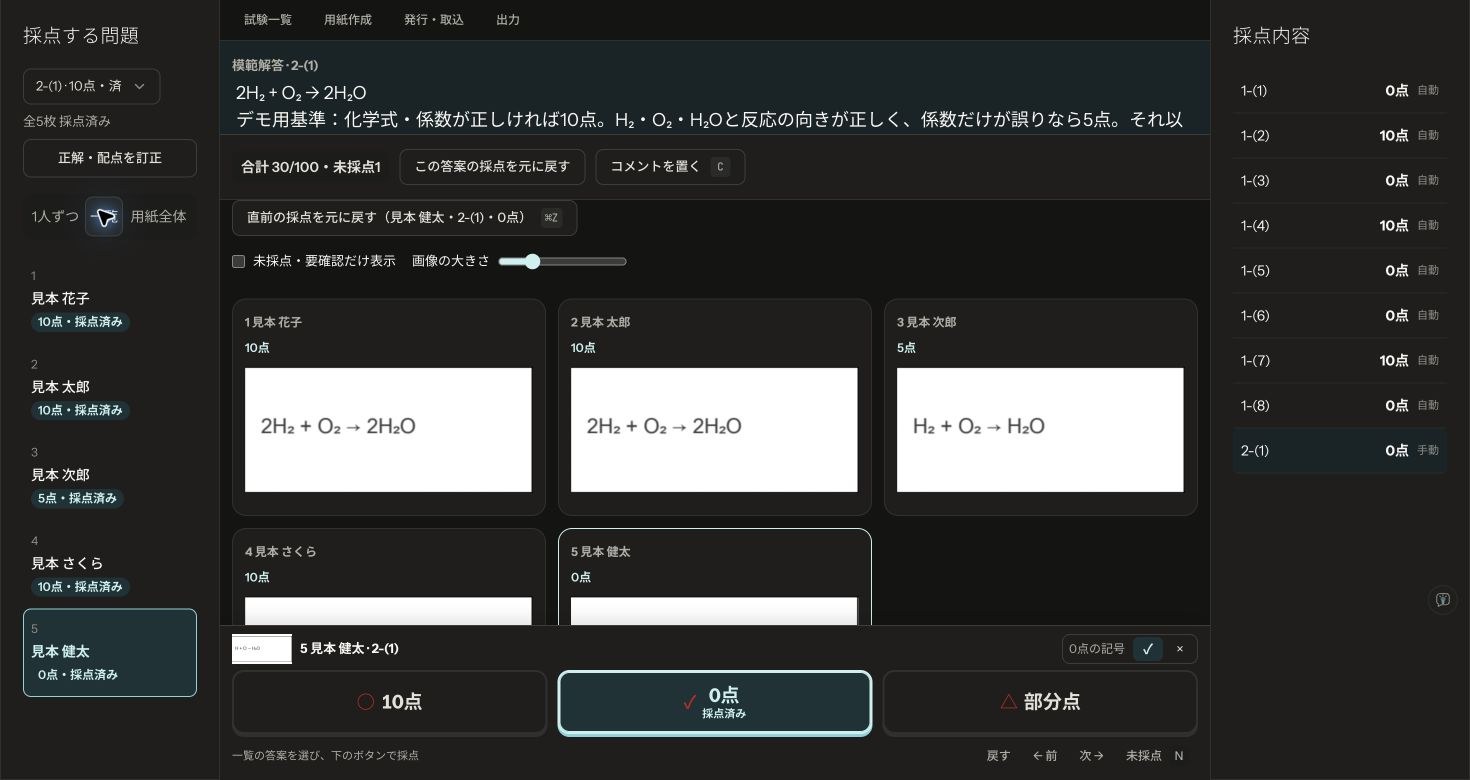
Scoring64 works with Codex and Claude Code to grade scanned paper tests, handwriting included. Give the AI your answer key and partial-credit rubric: it reads each answer and enters the scores in Scoring64. You review them, then make the gradebook and the returned PDFs.
For the Windows / Mac download. Scoring64 is free for 2 tests a month; AI service fees and limits are separate.
AI grading for written answers, automatic grading for bubbles
Scoring64 is desktop software for grading paper tests. With AI grading, Codex or Claude Code does the reading; Scoring64 keeps the answer sheets, stores and totals the scores, and makes the returns.
| AI grading of written answers | The AI compares each answer image with your rubric and saves full marks, zero or partial credit through Scoring64's screen. Unreadable answers, and answers your rubric does not cover, stay ungraded for you to check. |
|---|---|
| Automatic bubble grading | Scoring64 reads the bubbles and scores them against the key. No generative AI is involved. Faint or double marks go to review. |
| Grading on screen yourself | You grade the answers to one question, one after another. No AI service needed. This is also how you review the AI's scores. |
Entering a model answer does not grade written answers by itself. AI grading needs the setup and plugin below.
See five sample answer sheets graded against an answer key and partial-credit rubric (Japanese)
Trying AI grading for free
Each computer can grade 2 tests a month in Scoring64 with every feature and no limit on students. A test counts once, the first time you grade it; adding answer sheets, regrading and exporting the same test do not use another. The grading plugin is free too.
AI service fees are separate
What Codex or Claude Code costs, the model's usage limits and whether browser control is available depend on the service and your plan. Scoring64's free tests do not include AI usage. Check first whether your current plan covers it. The plugin never sets up pay-as-you-go API billing on its own.
With the built-in sample you can try the steps without paper or a scanner. For unlimited tests, see Pricing.
Requirements
- The Scoring64 download: Windows 10 / 11 (64-bit) or a Mac with Apple silicon.
- Codex or Claude Code running on the same computer, able to run local commands and control that computer's browser.
- Node.js 18 or later and the Scoring64 grading plugin.
- A connection to the AI service. Scoring64, the AI model and the browser control tool are not bundled with the plugin.
Attaching a PDF to ChatGPT in a browser is not enough for this integration, and a different computer or an isolated cloud environment cannot reach the Scoring64 on your computer. This page covers the Windows and Mac download.
Setting up AI grading
1. Open “Try the sample” in Scoring64
Install and open Scoring64, then click Try the sample on the home screen. With five fictional students you can see importing, the grading screen and exporting.
2. Add the grading plugin
In Codex or Claude Code's plugin manager, add the public repository below as a marketplace and install scoring64@fermion-scoring64. Check each service for its settings screen and terms.
Fermion-company/scoring64-plugins
The Codex plugin is in plugins/codex and the Claude Code plugin in plugins/claude. The repository's README also explains how to add them and what they support.
3. Ask, with the answer key and partial-credit rubric
Start by asking to see the sample.
Open the Scoring64 sample and show me the grading and export screens. Don't change any scores yet.
When grading, name the exam, the question, the answer, the points, the partial-credit rubric and what to save. For example:
Grade question 2-(1) in the Scoring64 sample. The answer is 2H₂ + O₂ → 2H₂O, worth 10 points. Give 10 points if the formulas and coefficients are right; 5 points if H₂, O₂, H₂O and the direction of the reaction are right but only the coefficients are wrong; 0 points otherwise or if blank. Leave unreadable answers ungraded. Don't change other questions, and report the scores and reasons for all five students.
This rubric is for the sample. For a real test, the teacher sets the rubric and prepares answer sheets with names and other personal details removed. Prepare, print and scan a new test as in the guide.
4. Review before exporting
Check the right, wrong and partial-credit answers, and clear anything ungraded or marked for review. Save the returned PDFs and scores CSV from Export & backup. If the AI misread your rubric, correct the scores; if you change anything after exporting, export again.
See the screens and results graded with the same rubric (Japanese)
How answer data is handled when an AI reads it
In regular on-screen grading and bubble reading, answer sheets, grades and class lists stay on your computer. With AI grading, the answer images and text the AI reads, and your rubric, may be sent to the AI service you use. AI grading is not fully offline.
Before using real answer sheets, remove names, contact details and other personal information, and check your school's policy and the AI provider's terms on retention, training use and deletion. Do not send personal information of children under 13 to AI services. The integration is meant for adult teachers and graders.
Privacy for Scoring64 and the AI integration · Privacy for the grading plugin
Questions about AI grading
Can Scoring64 be used as an AI grading tool?
Yes. Connect the Windows or Mac download to Codex or Claude Code running on the same computer, with the grading plugin. The AI compares each answer image with your answer key and partial-credit rubric, and enters the scores through Scoring64's screen. Scoring64 itself contains no AI model, and the teacher makes the final check.
Can I try AI grading for free?
Scoring64 is free for 2 tests a month with every feature, and the grading plugin is free. The AI service's fees and usage limits are separate, so check that your plan allows local commands and browser control. You can try the steps with the free sample.
Can I grade with ChatGPT in a browser alone?
No. The integration needs local commands and browser control on the same computer. Attaching a PDF to ChatGPT in a browser cannot operate Scoring64. Set up Codex or Claude Code instead.
Are answer sheets sent outside my computer?
Regular on-screen grading and bubble reading happen on your computer. With AI grading, the answer images and text the AI reads, and your rubric, may be sent to the AI service you use. Remove names first, and check that service's terms and your school's policy.
Does it handle handwriting and partial credit?
The AI reads images of handwritten answers and checks them against the answer key and partial-credit rubric you give it. You can tell it to leave unreadable answers, or answers your rubric does not cover, ungraded. Accuracy is not guaranteed for every subject or handwriting, so the teacher must review the results.